Current application screens with demonstration data. Names, projects and amounts are fictional. Yellow numbered arrows refer to the explanations below each image.
01 / The product in one minute
DH Project organises communication around each renovation. Clients see decisions and their own accounts, the team shares project materials, and the administrator follows projects and separate financial relationships.
- Clients understand what they approve, which work they pay for and how material funds are used.
- Administrators manage access, notice new activity and retain document versions and confirmations.
- Team members discuss issues in context, find documents and receive personal mentions.
02 / Registration and first access
Start with the personal invitation sent by your project administrator. The general sign-in page is for existing accounts.
- Open the complete invitation link in your browser and select a language.
- Enter your name and the exact email address used for the invitation.
- Create a password of 10–128 characters and repeat it. Keep it in a password manager.
- Choose “Create account and continue”. If you already have an account, choose “I already have an account” and sign in.
- If an invitation card appears after sign-in, check the project and role, then choose “Join the team”.
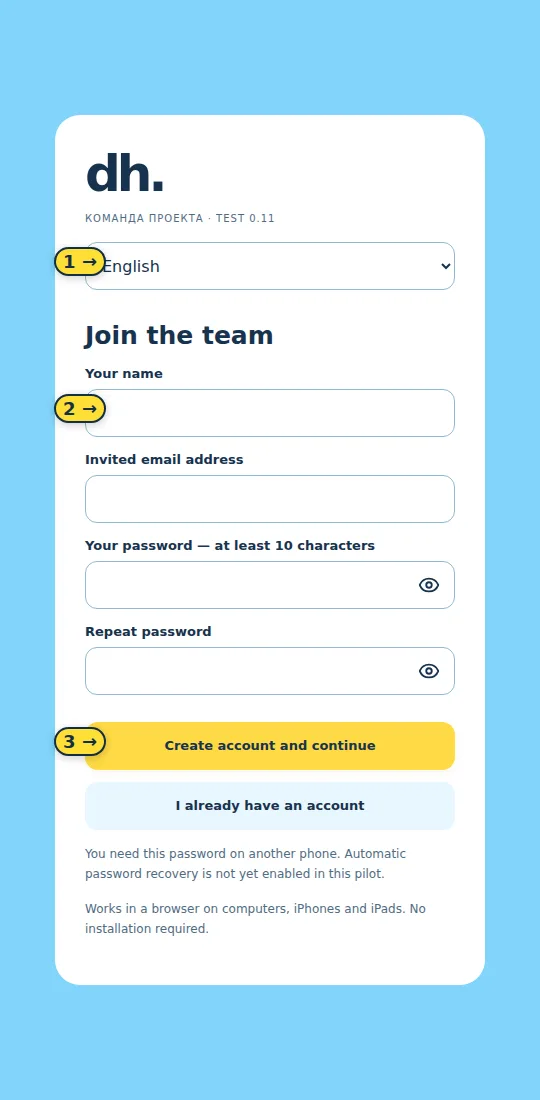
- Form language.
- Participant name, followed by email and password fields.
- Create the account. Keep your personal invitation private.
03 / Web browser and Android
- On a computer, iPhone or iPad, use “Open web app” above. No installation is required.
- On Android, download the APK above, open it and approve installation. If Android asks to allow this source, do so only for the administrator-provided build.
- Use an invitation for first access; use your email and password for later sign-ins.
- Refresh the browser to load interface updates, or close and reopen the Android app. Install a new APK over the existing app when the administrator releases a new build.
- Allow Android notifications when prompted if you want them. The web app has in-app activity indicators; browser push notifications are not yet enabled.
04 / Projects and unread messages
- Each project has a card on the home screen. Desktop users also see a project list on the left.
- A blue counter identifies new messages. Open the project and use the section counters to locate the activity.
- Entering a section with new messages takes you to the first unread message. With no unread messages, it opens at the latest one.
- To add a project, the administrator selects “Create”, enters a recognisable name and then invites the team.
- The globe changes your interface language without changing anyone else’s language.
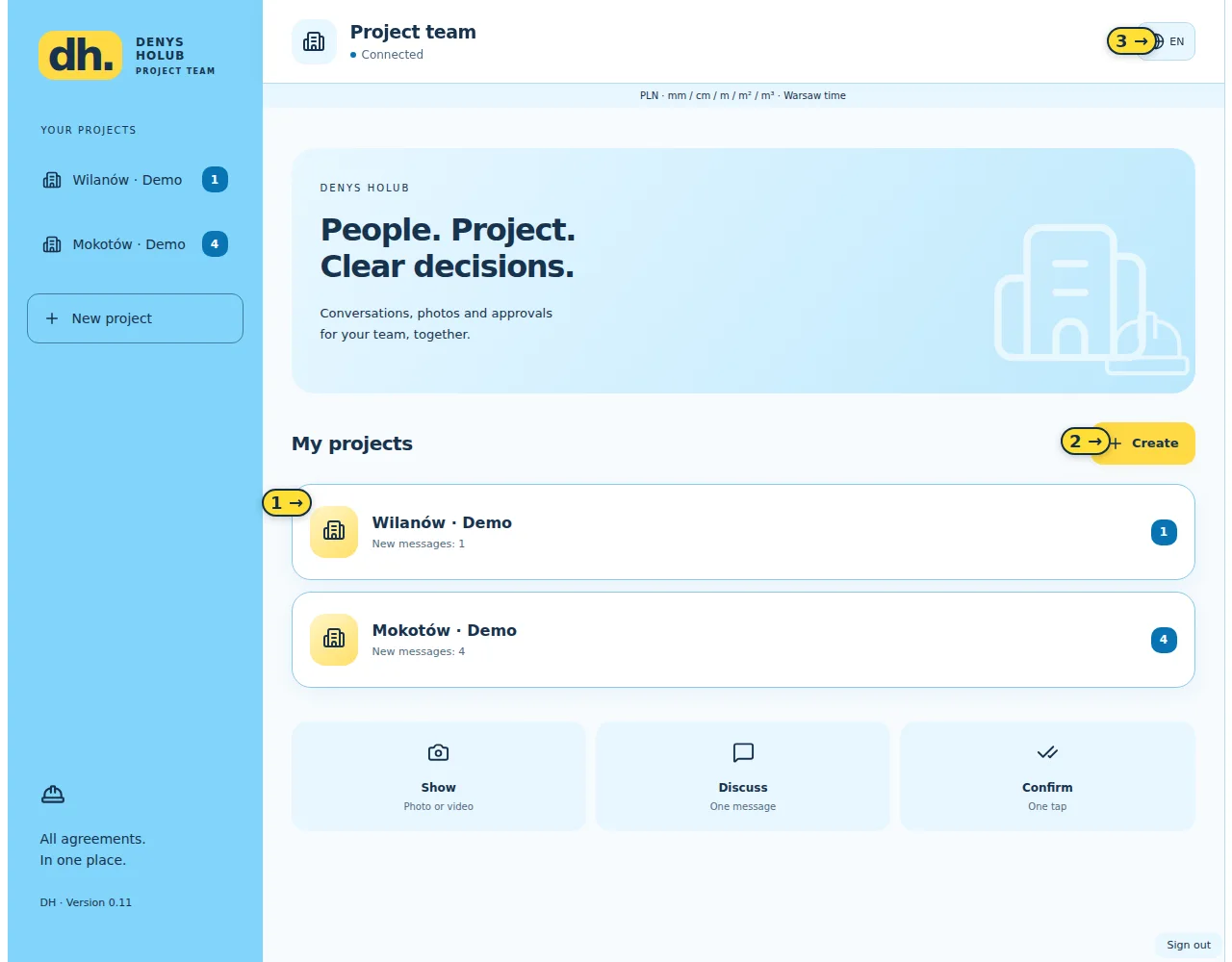
- Project card and unread counter.
- Administrator’s create-project action.
- Your interface language.
05 / Team and permissions
The administrator opens Team → Invite, enters an email, selects a role, creates a link and sends it to that person. Creating the link does not send an email automatically.
- Administrator: creates projects, invites and revokes access, proposes dates, initiates approvals and manages accounts.
- Client: chats, uploads materials, accepts or requests changes to proposals and accepts their stage amounts. Cannot initiate document approvals.
- Designer, engineer/inspector and coordinator: discuss work, submit proposals for approval and upload new document versions. They cannot access financial accounts.
- Contractor: chats, uploads materials and sees only their own accounts and relevant material movements. Cannot initiate approvals or approve documents on behalf of the client.
- In “My project roles”, the administrator may select several professional functions. This never grants the right to approve as the client.
- Revoking access removes project access but preserves the participant’s earlier messages.
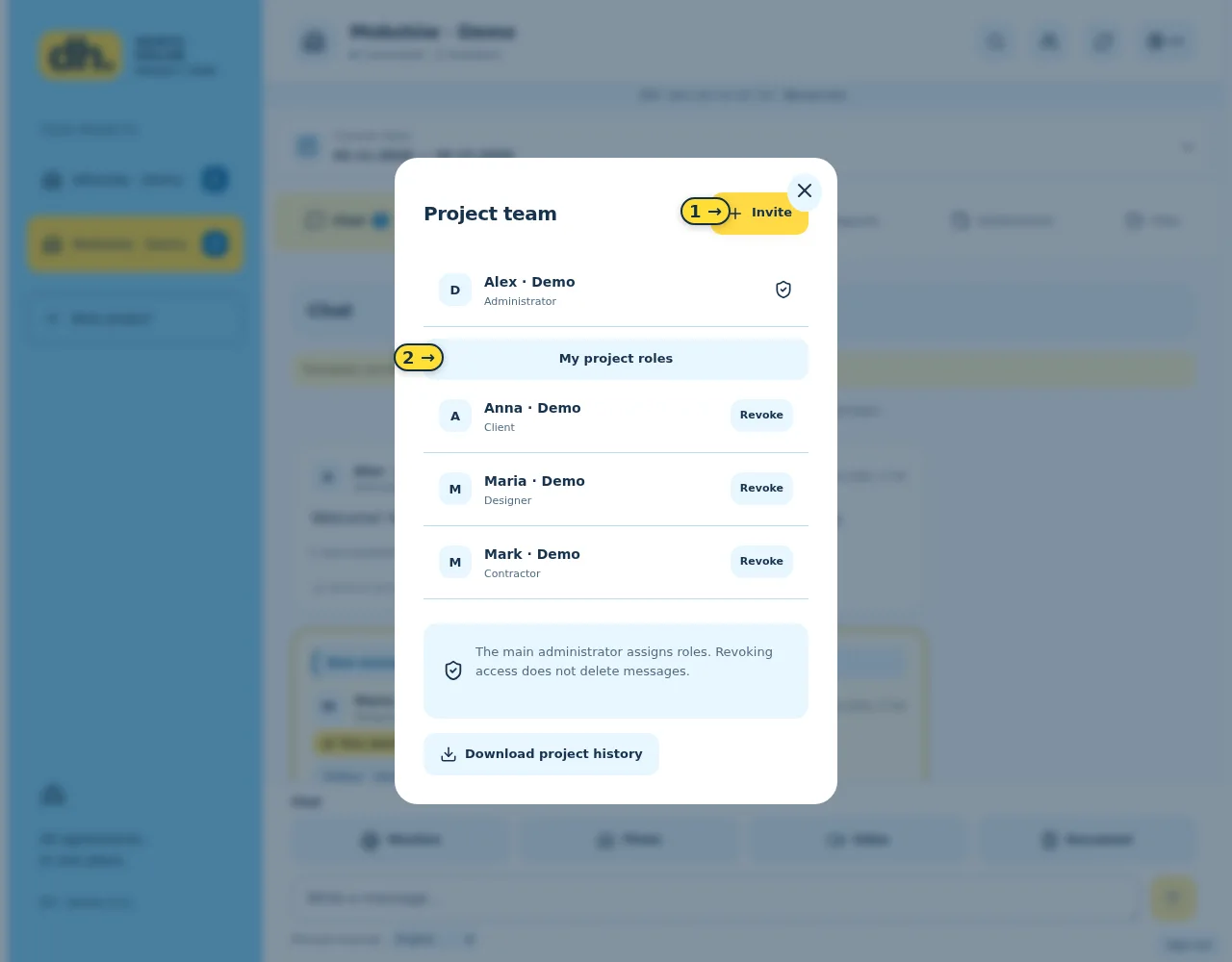
- Invite someone and assign a role.
- Select several administrator functions.
06 / Project sections
- Chat: shared conversation, photos, videos and documents. There is no approval button here.
- Designs: drawings, design choices and related discussions.
- Documents: contractual and other working documents.
- Reports: progress, photographs, videos and report documents.
- Settlements: restricted work accounts and material funds, visible according to the financial relationship.
- Files: archive of attachments from the four communication sections. Search and open files here; approvals are created in their source sections. Financial receipts remain in restricted accounts.
07 / Messages, attachments and @mentions
- Choose the project and section, type your message and press the send arrow.
- Use Photo, Video or Document to add files. Photos need no caption. A message accepts up to 10 photos or one video/document. The limits are 25 MB per file and 50 MB per photo group.
- In Chat, press @Mention or type @name and select a participant. You can mention several people.
- The message remains visible to the whole chat. The recipient sees “You were mentioned”; this is not a private message.
- Check the “Saved on server” indicator. History is retained; send corrections as a new message.
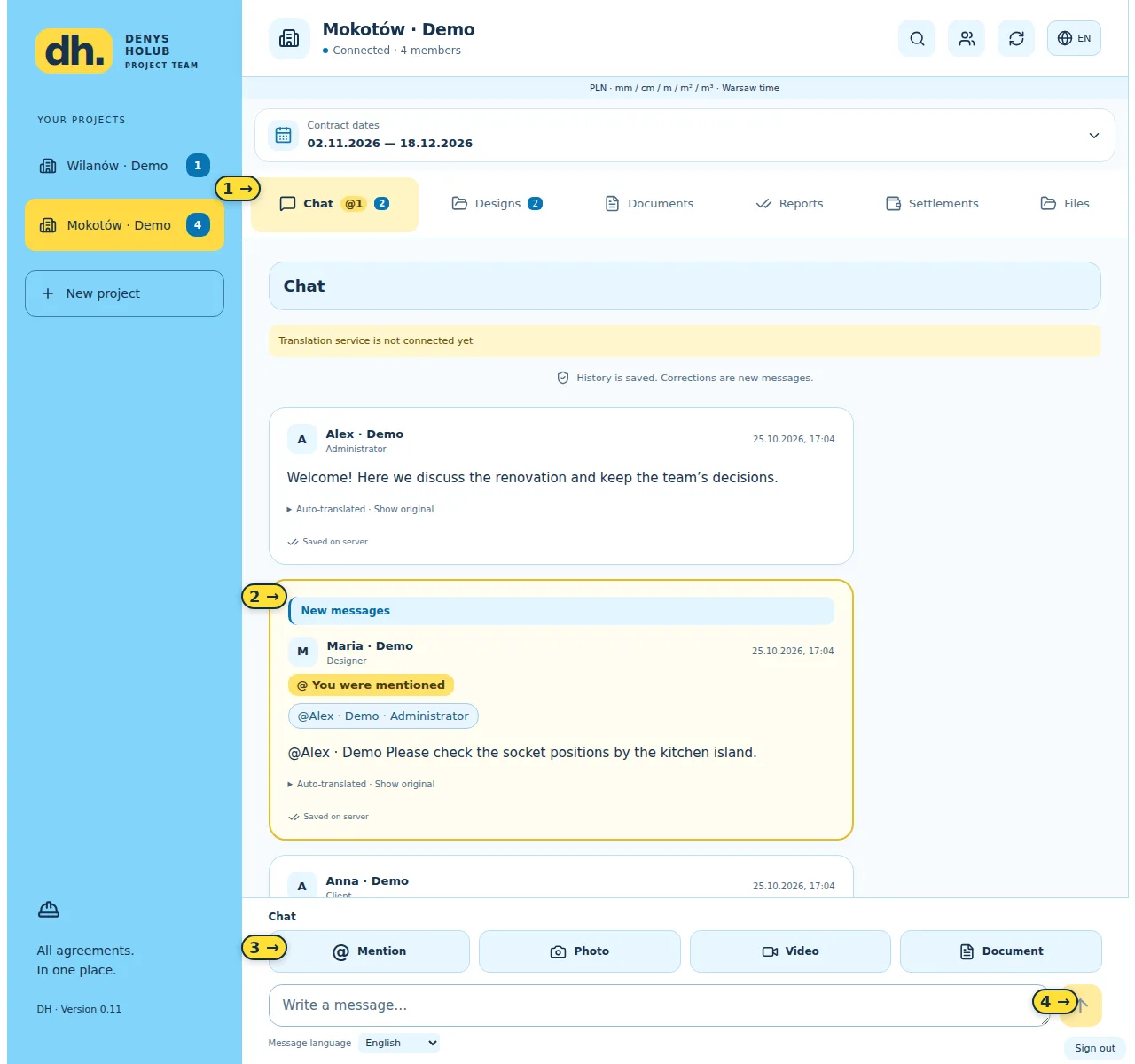
- Project sections and activity indicators.
- Highlighted personal mention.
- Mention and attachment buttons.
- Send the message.
08 / Translation and search
Each participant chooses Russian, Ukrainian, Polish, English or German. Automatic translation covers chat text and settlement descriptions, with the original available to view. PDF contents, images and videos are not automatically translated.
- Check “Message language” before sending, especially when writing in a different language from your interface.
- If translation is unavailable, the original remains. Do not approve text you do not understand; retry translation or ask the author to clarify.
- Open the project’s magnifying-glass search, enter a word, phrase or attachment name and select a section or the whole project.
- Select a result to jump to its message. Search does not extract text from scans or PDFs.
- Translations are cached. The pilot shares a limit of 450,000 characters per month and 15,000 per day across chat and settlements.
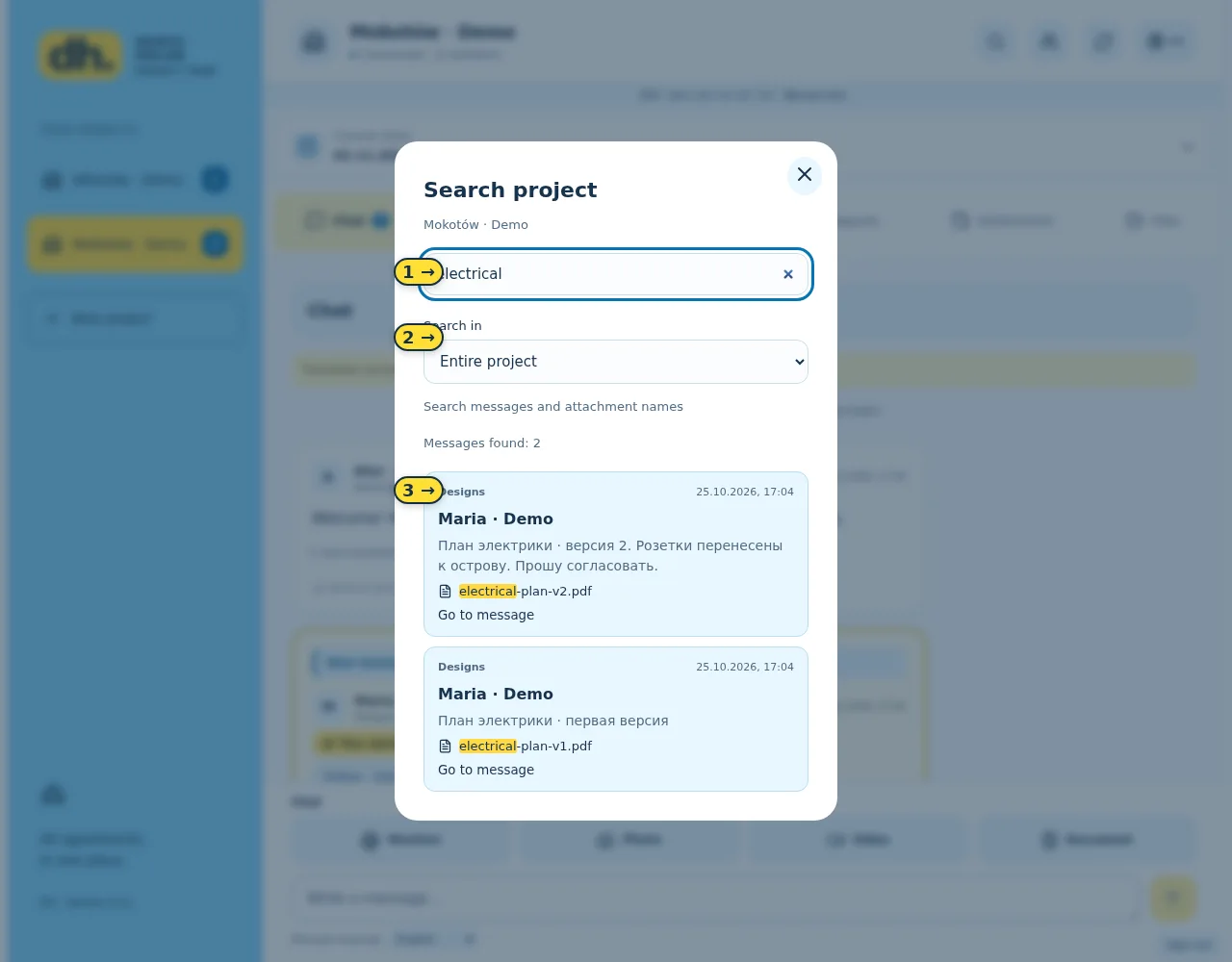
- Word, phrase or document name.
- Search scope.
- Result linking to the source message.
09 / Approvals and document versions
- The administrator, designer, engineer/inspector or coordinator opens Designs, Documents or Reports, adds the materials, enables “For approval” and sends the proposal.
- The client opens the attachment, checks the text and chooses “Approve” or “Changes needed”, giving a reason for changes.
- The response is stored with the person and time. This records a decision; it is not a qualified electronic signature service.
- To replace a document, choose “Upload new version” on the current single-attachment document. The previous version stays in history.
- A new version does not inherit an earlier approval. Check its number and “Current” status before deciding.
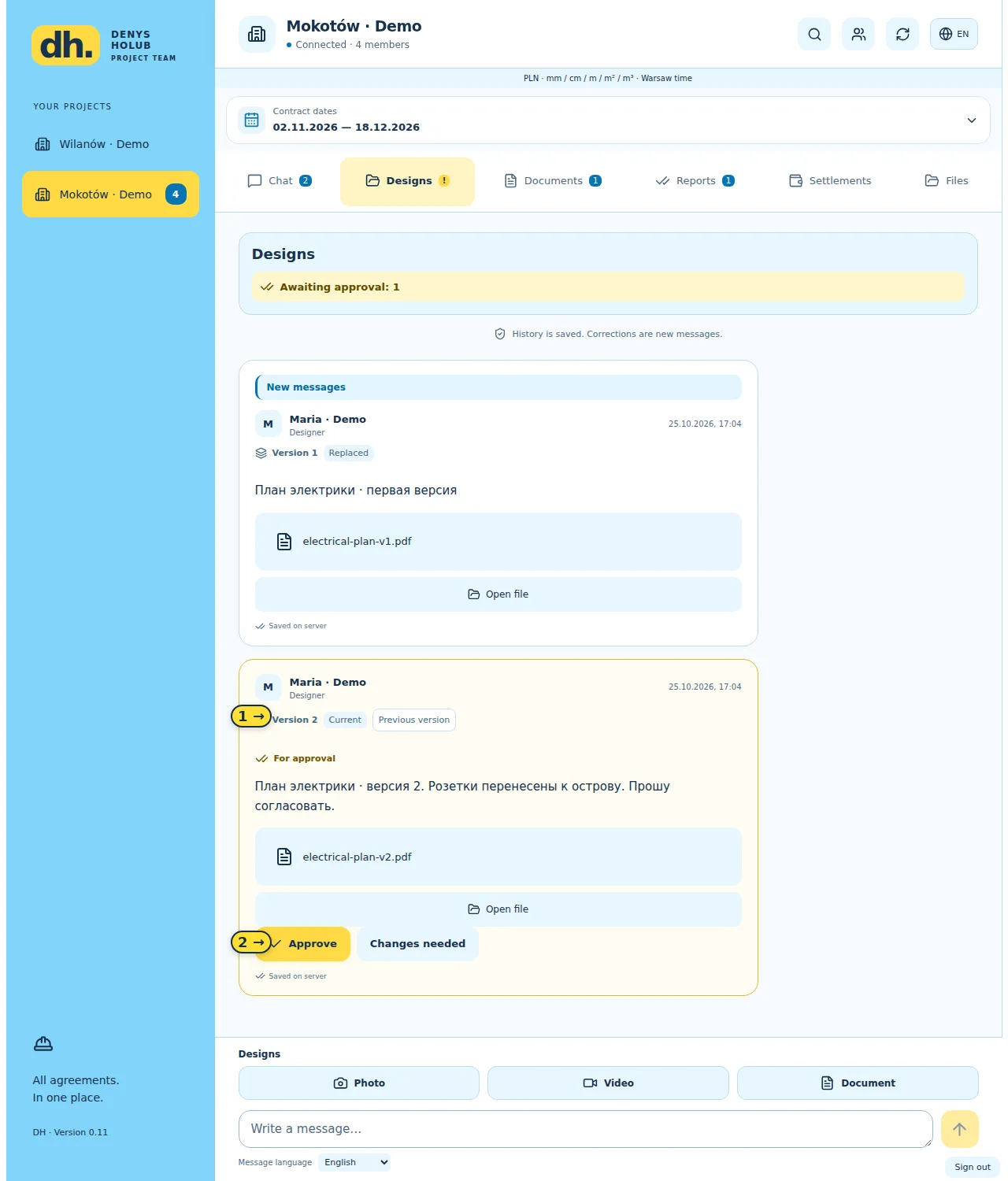
- Version number, current status and earlier version.
- Client decision buttons.
10 / Contract dates and file archive
- Open Contract dates at the top of the project. The administrator proposes start and finish dates.
- The client accepts the proposal. When revised dates are proposed, the previously accepted dates remain valid until the revision is accepted.
- In Files, search by filename and check the author, date and source section.
- The archive includes older versions; check current status in the original discussion.
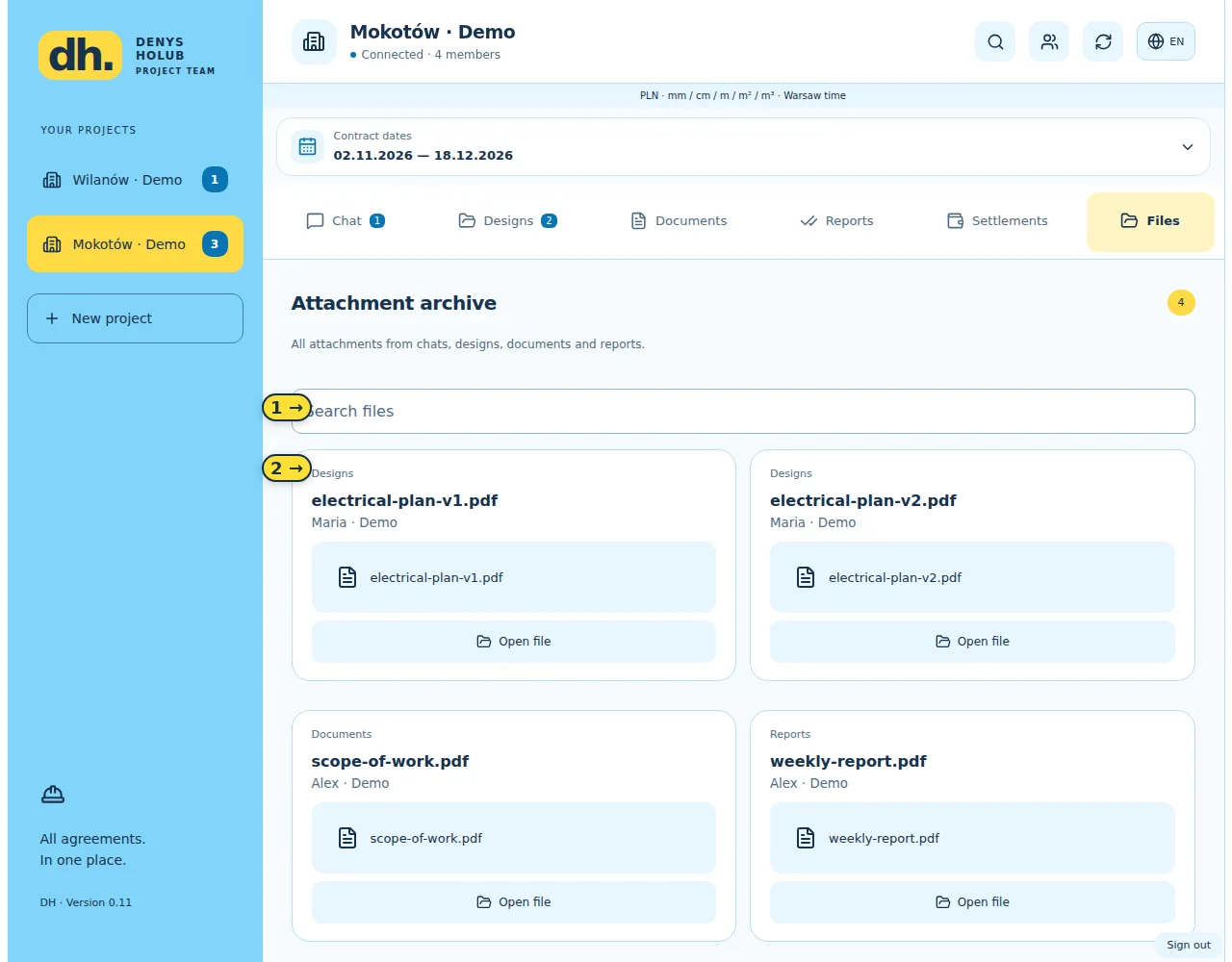
- Filename search.
- File card with source section, author, date and opening action.
11 / Work-stage payments
Only the client and administrator see that client’s account. Only the contractor and administrator see that contractor’s account. Other participants cannot access these amounts.
- Once the participant has registered, the administrator opens Settlements → Open participant account and chooses a client or contractor.
- In Work, select the participant and create a stage with a clear description, PLN amount and optional due date.
- The other party reviews it and selects “Accept amount”. Unaccepted proposals are excluded from agreed value.
- After actual payment, the recipient confirms receipt: the administrator for client payments, and the contractor for administrator payments.
- Partial payments are supported. Example: 6,000 PLN agreed, 4,000 PLN received, 2,000 PLN outstanding. Entries above the remaining balance are rejected.
- Read the translated description and compare it with the original. Check both the amount and the work scope before confirming.
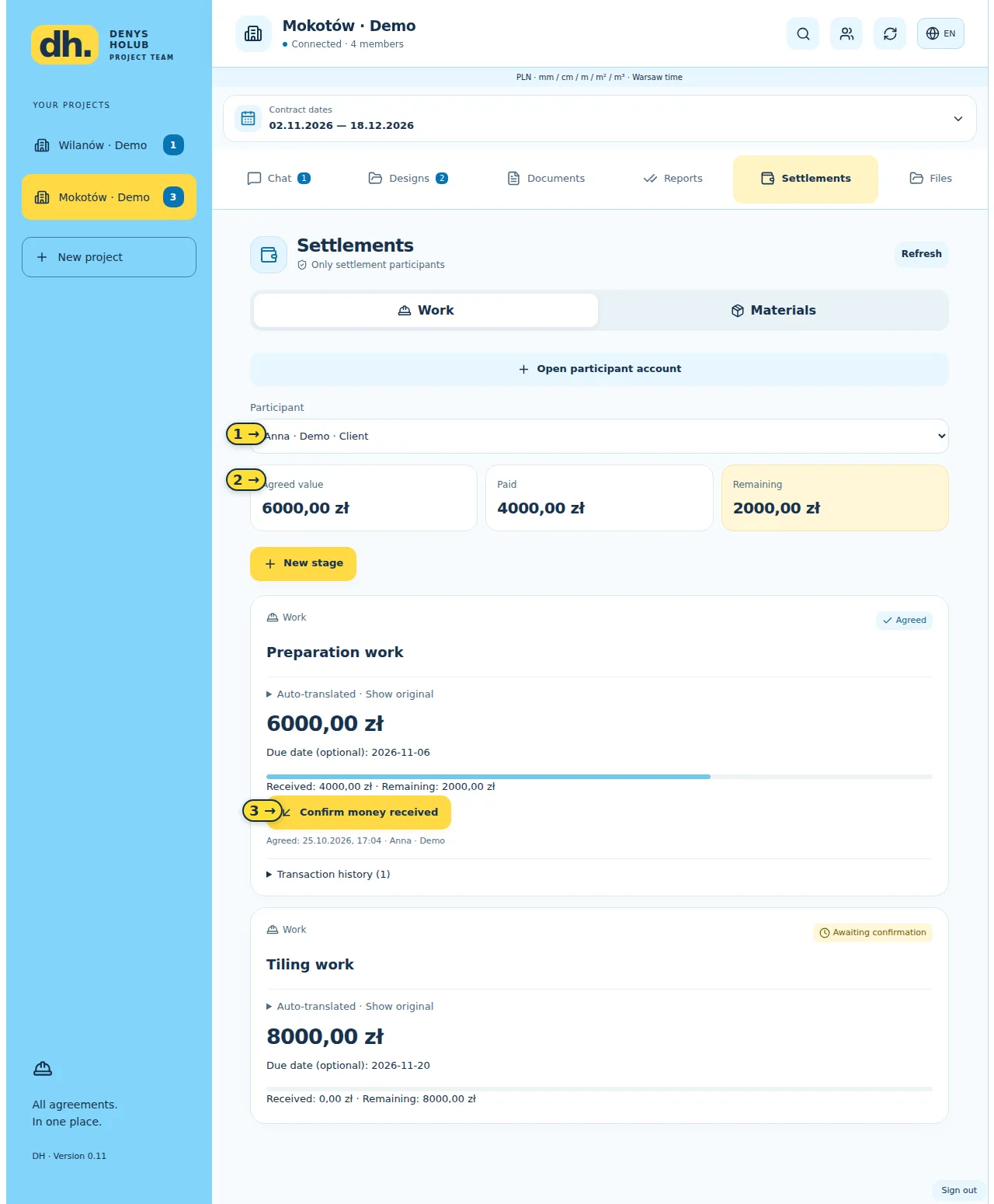
- Separate participant account.
- Agreed value, received amount and balance.
- Confirm actual receipt of funds.
12 / Cash and material funds
- Open Settlements → Materials and record Funds from client: amount, method and purpose.
- Record giving cash to a contractor as a separate transfer. The recipient confirms receipt before the funds become available to spend.
- The contractor or administrator records a purchase, description and optionally an image/PDF receipt up to 10 MB. The administrator approves contractor purchases.
- Use Return remaining funds for unused cash. The recipient confirms the return or may reject an unconfirmed entry.
- Example: client funds 3,000 PLN; contractor receives 1,000 PLN and spends 750 PLN. After confirmation, the administrator holds 2,000 PLN, the contractor 250 PLN, and 2,250 PLN remains overall.
- A transfer between people is not a purchase. Pending outgoing entries reserve funds and reduce the available balance.
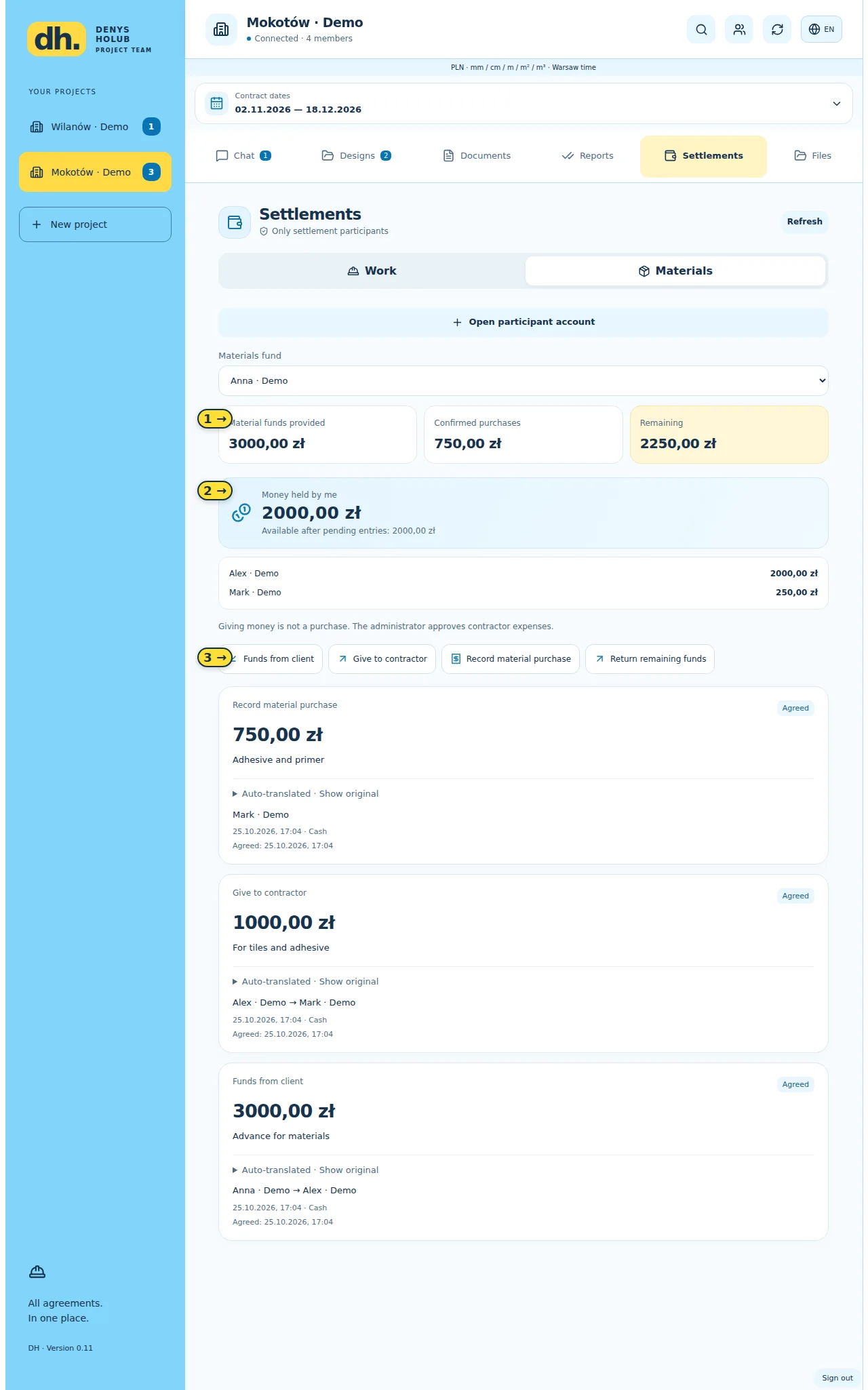
- Funded amount, confirmed purchases and remaining fund.
- Current holder’s balance and available funds.
- Funding, transfer, purchase and return actions.
13 / Troubleshooting
- Cannot sign in: check the invited email, keyboard layout and password. Use the personal invitation for first access.
- Invitation unavailable: ask the administrator to check email, expiry and revocation, and issue another link if needed.
- Missing a section or button: check your role and project. Finance and approval functions are intentionally restricted.
- Upload failed: check connection, file format and size. Before retrying, check whether the message has already appeared.
- Payment save error: refresh the list before entering it again. Avoid creating a duplicate until the first attempt is checked.
- Report bugs with device, browser/app version, language, project, steps, expected result and actual result. Hide passwords and personal information in screenshots.
14 / For partners and investors
The product connects discussion, document version, client decision and financial stage within one renovation. Role-based access, individual languages and project activity indicators support a distributed team handling several sites.
- Available in the pilot: projects and invitations, five interface languages, chat, mentions, search, versions, approvals, contract dates, private accounts, material funds, web access and Android.
- Pilot measures to validate: first-login success, time to find a decision, clarity of approvals, accuracy of balances and usability across multiple projects.
- Possible development: independent companies and subscription plans, permanent domain, account recovery, broader notifications, payment corrections and reporting. These are planned directions, not existing features.
- No claims about paying customers, revenue or investment returns are made here. Those require pilot evidence and a separate financial model.
Access and installation
Open web apphttps://rfc-upc-trademarks-did.trycloudflare.com/loginDownload Android APKhttps://rfc-upc-trademarks-did.trycloudflare.com/downloads/project-room.apkThe pilot address is temporary. Ask the administrator for the current link if it stops working. The APK is for Android; use the web app on iPhone, iPad and computers.